CaptureGuide
6 min read
How to take a full-page screenshot in Microsoft Edge, with or without an extension
Edge captures a whole page by itself, from Ctrl+Shift+S. Here is that method, the DevTools one, and what an extension adds when you need a PDF whose text you can search.
Edge has had a full-page capture built in for years, and unlike Chrome's it is not hidden in the
developer tools: press Ctrl+Shift+S and choose Capture full page. That gives you an image of
the whole page, scroll and all, with a pen to mark it up before you save. Below are that method,
the DevTools method for when you need the page at a set width, and an extension for when an image
is not enough. If you also use Chrome, the Chrome version of this guide
covers the same ground there.
1. Edge's Screenshot tool
Nothing to install.
- Open the page.
- Press
Ctrl+Shift+S. The same tool is in the right-click menu and in the Settings and more menu, the…at the top right of the window. - Choose Capture full page. Capture area is beside it, for a part of the page you drag out.
- Mark it up if you like, then copy it or save it.
Microsoft's feature page says it takes the parts you would have to scroll to see, and that it keeps GIFs and carousels moving while you capture, so you can catch the frame you want. After a capture you draw on it with a pen or by touch, to add notes, highlights or callouts, then copy or save it. A copied capture pastes as an image into Word, Excel, PowerPoint and OneNote. Edge's administrator documentation adds that it captures PDF content too, and that you can run a visual image search on what you captured.
A note on the name. Edge's feature page and its administrator documentation call it
Screenshot, and the latter says it was "previously named Web Capture". Microsoft's learning
center article on the same feature still calls it Web capture and tells you to pick that from
the Settings and more menu. If you do not find one name in the menu, look for the other. If
you find neither on a work computer, an administrator can switch the feature off with the
WebCaptureEnabled policy, and then it is gone from the menus and the shortcut alike.
What you get is a picture. It is quick, and you can draw on it before it leaves the browser. You cannot select or search a word of it, and a PDF is not one of the choices Microsoft's pages describe.
Verdict: the fastest way to a full-page image in Edge, with nothing to install and nothing to open first.
2. Edge DevTools: Capture a full size screenshot
This is the method for a capture at a particular width: the page as a phone shows it, or at exactly 1280 pixels. It is the same one Chrome has, and Microsoft's page on it is partly adapted from Google's.
- Right-click the page and choose Inspect to open DevTools.
- Click Toggle device emulation in the Activity Bar. The page is drawn inside a resizable viewport.
- Pick a device from the list, or type a width and height.
- Open More options in the device toolbar and choose Capture a full size screenshot.
That captures the whole page, including what is below the visible part; Capture screenshot in the same menu takes only the visible part. Emulation is an approximation, as Microsoft's page says itself: it changes the viewport, the device pixel ratio and the device type, and does not run the page on a phone.
Verdict: the one to use when the width matters, or when you are testing a layout you built.
3. An extension: Page Scanner from Edge Add-ons
When the capture should be a document rather than a picture, an extension is the step up. Page Scanner is on Edge Add-ons, and it is the same extension as on the Chrome Web Store, built from the same source.
- Install Page Scanner from Edge Add-ons.
- On the page, click its toolbar icon or press
Alt+Shift+P. It does not collide with Edge'sCtrl+Shift+S. - Choose a Page width (the window's, A4, Letter or a phone's)
and press Scan this page. The button is focused, so
Enterworks too. - The editor opens in a tab beside the page. Crop, mark it up, blur or redact what should not be shared, choose A4, Letter or one long page, and extract.
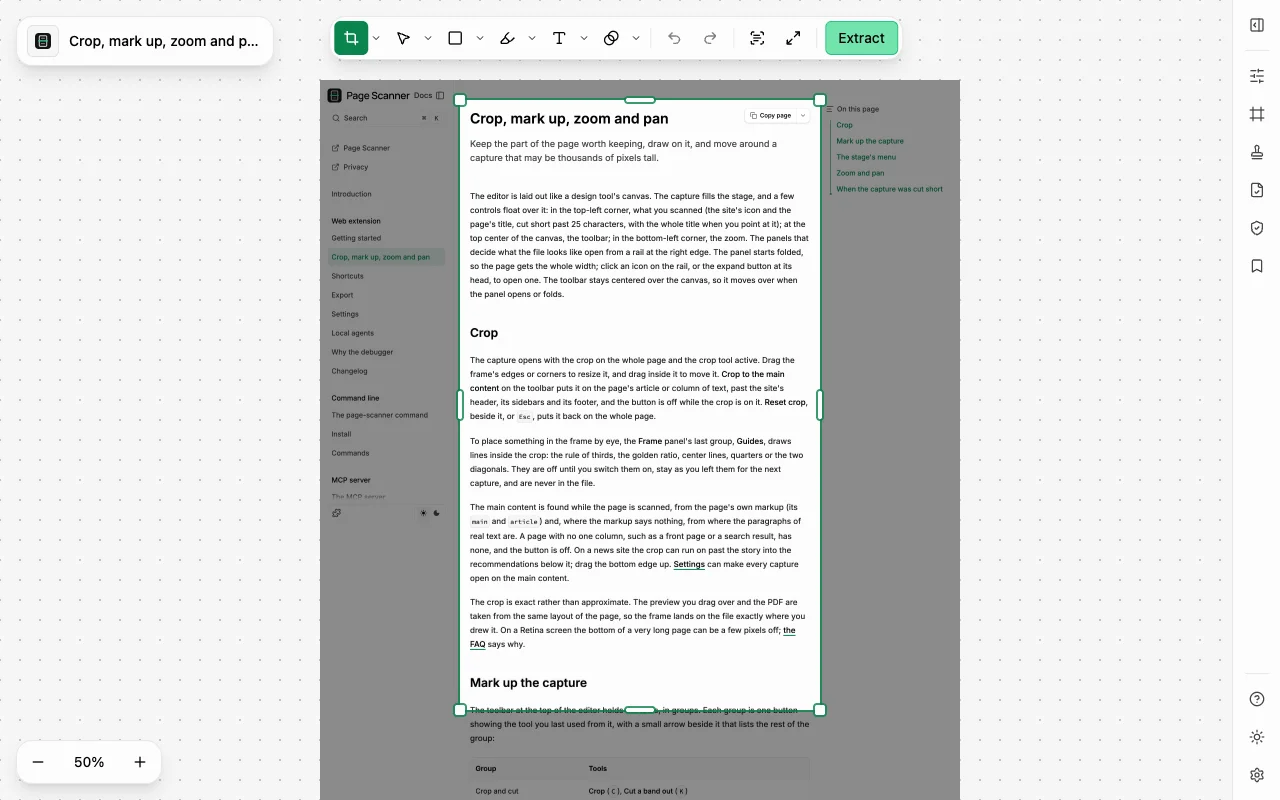
The difference from the first two methods is what the file is made of. Page Scanner lays the page out once at its full height and asks the browser's print engine to render that layout, so the PDF keeps the page's text as text and its artwork as vectors: you can search it, copy from it and zoom without blur. The same capture exports as PNG or JPEG, and the text in your crop as Markdown or a Word document. Captures, marks and files stay on your computer; the extension sends anonymous counts of which features are used, which a switch in its settings turns off.
What is different in Edge:
- The browser is named Edge. Every message that says what the browser does says Edge, and
edge://pages and Edge's own add-on store cannot be scanned, aschrome://pages cannot in Chrome. - Edge shows its debugging bar during a scan. Page Scanner lays the page out through the browser's debugger, and the browser announces that for the length of the scan. The editor's note explaining the bar was measured on Chrome's bar, not Edge's.
- No built-in AI model in Edge's stable release. AI Scan in Sensitive Text and a tidied text export ask the browser's built-in model, which Edge offered only in its Canary and Dev channels when this was written. Pattern Scan works either way, and a model you serve on your own computer, or one downloaded to run in the browser, works in Edge as in Chrome.
- Local agents connect as in Chrome. The command line's
installcovers the Edge Add-ons copy, so an AI agent can scan pages in Edge once you press Connect in the settings.
The costs are the same as in Chrome. The debugging bar shows for the length of every scan and a few seconds after. If DevTools is open on the tab, the debugger cannot attach and the scan falls back to stitching screenshots, whose PDF is an image; close DevTools first. A page taller than 60,000 pixels stops there unless you raise Maximum page height in the settings, and the export message says how much was left out.
Verdict: the one to use when you need to search, print, annotate or redact the page, or hand it to someone as a PDF.
Which way, when
| You get | Text selectable | Mark it up | To install | |
|---|---|---|---|---|
| Edge's Screenshot | an image | ✗ | ✓ draw, highlight, add notes | nothing |
| Edge DevTools | an image, at the width you set | ✗ | ✗ | nothing |
| Page Scanner | PDF with text, PNG, JPEG, Markdown, Word | ✓ | ✓ shapes, text, blur, redaction | an extension |
✓ yes, ✗ no.
Frequently asked questions
Can I install Page Scanner from the Chrome Web Store in Edge? Yes, Edge installs from the Chrome Web Store too, and that copy also says Edge when it runs there.
Can I capture a page I am signed in to? All three methods work inside your own Edge, on the page as you see it, so yes.
Why is my Page Scanner PDF an image? DevTools was open on the tab. Only one debugger can attach at a time, so the scan stitched screenshots instead. Close DevTools and scan again.
Where this comes from
- Microsoft Edge: the Screenshot feature page, the learning center's How to take a screenshot of a webpage, and the WebCaptureEnabled policy.
- Microsoft Edge DevTools: Emulate mobile devices (Device Emulation).
- Page Scanner's documentation: Getting started, Why the debugger, Settings › AI Model, Local agents and the FAQ.