Marking it upComparison
8 min read
How to annotate a screenshot with arrows and step numbersSnagit vs. CleanShot X vs. Markup Hero vs. Awesome Screenshot vs. Page Scanner
For help articles, release notes and bug reports, a screenshot needs an arrow, a numbered badge per step and sometimes a close-up. Five tools compared on those marks, on what they can capture, and on the file you hand over.
A support article or a how-to lives on three marks: an arrow that says "here", numbered badges that say "in this order", and a close-up of the control too small to read at page size. Every tool below draws an arrow. They part ways on the numbers, on the close-up, on what they can capture in the first place, and on whether the file you hand over is a picture or a document.
If you write documentation, the capture question comes first. Snagit, CleanShot X and Markup Hero's desktop app capture other applications as well as the browser, and Awesome Screenshot has Mac and Windows apps besides its extension. Page Scanner captures a browser tab. If your product is a desktop app, that settles most of it.
Five tools at a glance
| Snagit | CleanShot X | Markup Hero | Awesome Screenshot | Page Scanner | |
|---|---|---|---|---|---|
| What it captures | a region, a window, the full screen, a scrolling page | an area, a window, the full screen, a scrolling capture in any app | tabs from its Chrome extension; other apps from its desktop app | a tab: full page, an area, the visible part | a Chrome tab, whole or one element; or a picture you open |
| Arrows | ✓ | ✓ 4 styles, curved included | ✓ and a callout arrow | ✓ | ✓ one end or both |
| Step numbers | ✓ numbers or letters | ✓ Counter | ✓ renumbered when one is deleted | ||
| Magnified close-up | ✓ Magnify | ✓ Magnifier, joined by a line | |||
| Text | ✓ and callouts | ✓ 7 styles | ✓ with a background | ✓ with a background | ✓ with a box behind it |
| Blur | ✓ | ✓ pixelate or blur | ✓ | ✓ | ✓ |
| The file you hand over | JPEG, PNG, GIF or PDF | PNG, a multi-page PDF, or a share link | PNG, JPG or PDF, or a share link | a PDF whose text is text, or PNG or JPEG | |
| Platforms | Windows 10 and 11, macOS 14 and later | macOS 13 and later | Chrome, Mac and Windows | Chrome; Mac, Windows and iOS apps | Chrome and Edge |
| Price | US$39 per user per year | US$35 once, a year of updates | free; Premium for unlimited markups | free up to 100 screenshots; all tools from US$5 a month | free |
✓ yes. An empty cell is one the product's own pages do not answer.
Snagit
Snagit's editor has every mark this post is about. TechSmith's page lists "arrows, highlights, text, and step numbers", plus callouts, which it describes as "text boxes connected to specific parts of an image with an arrow". The Step tool adds "numbers or letters sequentially on the canvas", lets you pick the sequence type, restart it, and set a badge's value by hand with Edit Value. The Magnify tool will "Enlarge part of an image to focus attention and view greater detail", with the magnification set by a slider or a typed value.
For documentation teams the standout is Step Capture: "Automatically create guides as you click-through a process", each click becoming a numbered screenshot. It captures "a region, window, full screen, or scrolling page", from any application.
It is US$39 per user per year, on Windows 10 and 11 and macOS 14 and later, with a 14-day money-back guarantee.
Verdict: every mark a step-by-step guide needs, with letters and restartable numbers, and Step Capture builds the guide from your clicks.
CleanShot X
CleanShot X is a Mac capture app with a native editor. Its features page lists arrows in "4 styles, including curved", rectangles, filled rectangles, lines and ellipses, text with "7 predefined styles", a highlighter, a spotlight, pixelate and blur, and a Counter to "Provide step marks for tutorials". Its scrolling capture "Works in every app", vertically and horizontally.
CleanShot Basic is US$35 once, with one year of updates and "Optional renewal at $19 per year"; CleanShot Pro is US$10 per user a month, billed annually. It needs macOS 13.0 or newer.
Verdict: the one for a Mac user who wants the whole thing, capture to arrow to counter, in one app that feels like macOS.
Markup Hero
Markup Hero comes as a Chrome extension and a desktop app, and says you want both: the extension "is for creating markups from your browser tabs and the Desktop App is for creating markups from other applications". Its tools page lists text, arrows and lines, a callout arrow ("arrows with a text box attached"), rectangles, ovals, a pen, a highlighter, blur, inserted images, a signature and crop. It does not list a numbering tool. Markups are kept in your Markup Hero account and shared by link, and anyone you share with can annotate too; the extension exports PNGs and multi-page PDFs.
Free covers the whole toolset. After five markups it asks for a free account, and the limit on that account is stated two ways in its own help center: one article offers the upgrade after 25 markups, another says a free account "can have up to thirty (30) markups". Premium makes them unlimited and keeps annotations editable.
Verdict: the one for teams that review screenshots together in the browser. For numbered steps, its tools page lists nothing.
Awesome Screenshot
Awesome Screenshot is a Chrome extension for capture and screen recording, with Mac, Windows and iOS apps. Its store listing covers the basics: "rectangles, circles, arrows, lines", text "with or without background color", blur, a highlighter and crop, and saving "in PNG or JPG format, or download screenshot as PDF". The help center splits the tools into a sidebar of basic ones and a toolbar of advanced ones. The free plan has "Basic annotation tools" for up to 100 screenshots; the Basic plan, US$5 a month billed annually, has "All annotation tools".
Verdict: a good fit when the screenshot is headed to a teammate by link or into Jira, Slack or Trello. Its pages do not mention step numbers or a close-up.
Page Scanner
I build Page Scanner. It captures a page in your own Chrome and opens it in an editor whose toolbar is laid out like a design tool's, one key per tool:
| Mark | Key |
|---|---|
| Arrow, line | A, L |
| Rectangle, ellipse | R, O |
| Highlighter | H |
| Text | T |
| Step number | N |
| Magnifier (close-up) | M |
| Blur, redact, erase text | B, X, W |
| Select | V |
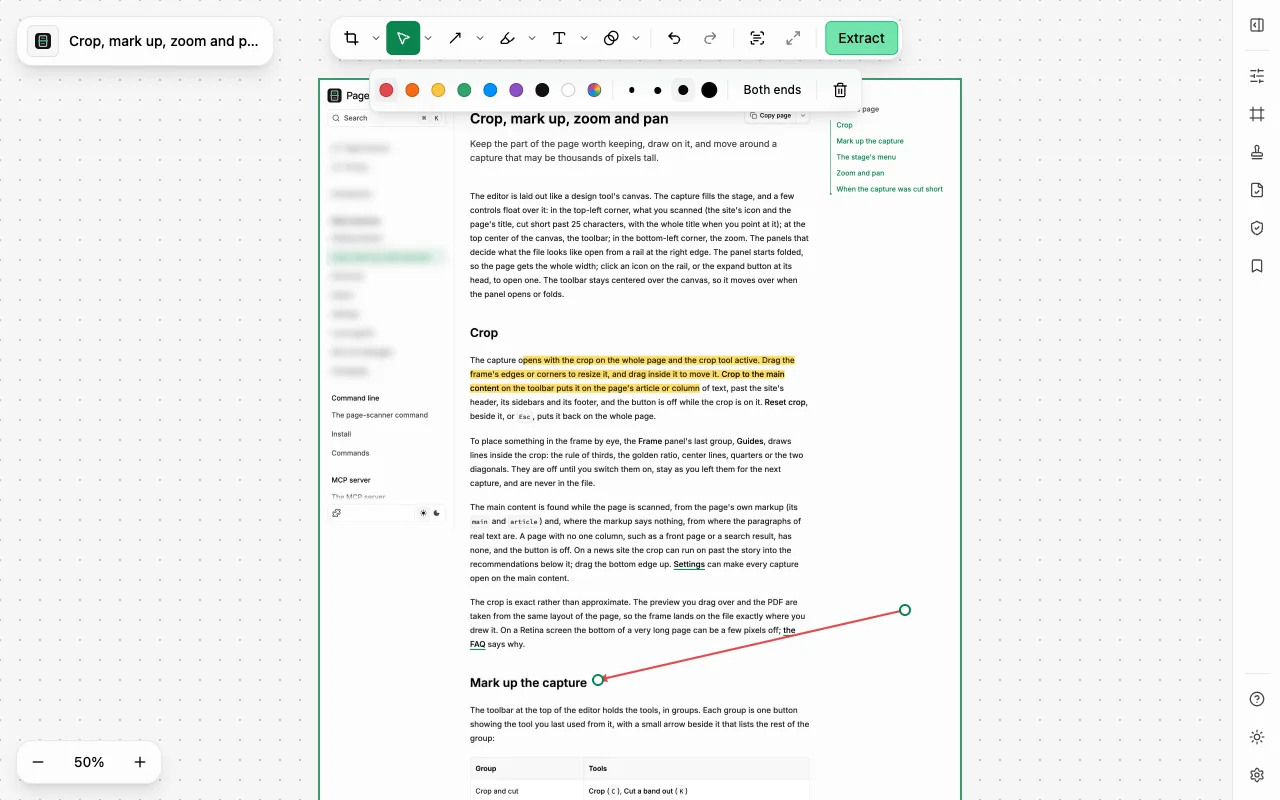
Draw a shape and the tool hands back to Select with the new mark selected, so you can adjust it at
once; hold Shift for a line on a multiple of 45°. The style bar has eight colors and a picker,
four stroke widths (1, 2, 4 and 8 px) and Both ends for an arrow; the default is red at 4 px.
Step number (N) places a 28 px disc with its number where you click, and the tool stays in
hand, so a run of clicks numbers a run of steps. The number is the badge's place among the badges:
delete badge 2 and badge 3 becomes 2, on the stage and in the file. The number is white on a dark
disc and near-black on a light one. The Magnifier (M) takes the region you drag round and
places a copy at twice its size beside it, joined by a line, on whichever side has room; resize the
copy to change the enlargement.
The file is where it differs from the rest. In the PDF the page's text stays selectable and
searchable, the marks are vectors drawn over it, a badge's number is real text, and a mark that
crosses a page break appears on both sheets. You can crop to one element with Pick an element
(Alt+Shift+E), and export on A4 or Letter with the page breaks placed where they do not cut a
line. A named preset keeps your pen and output choices for the next guide.
What it costs: it captures a browser tab, not a desktop app or a menu. A screenshot taken elsewhere can be opened in the editor as a PNG, JPEG or WebP and marked up the same way, but the capture is not Page Scanner's. Numbers count from 1 in placing order and cannot be edited or restarted, so a second series means a second export. A close-up is a picture of the region, as sharp as the capture and no sharper, and its words are not selectable. Marks stay in the browser with the capture, which is deleted after 12 hours; export what you keep.
Verdict: the one for documenting a web app when the deliverable is a searchable PDF rather than a picture.
Which should you use?
Use Snagit if you write step-by-step guides for desktop software and want letters, restartable numbers and Step Capture.
Use CleanShot X if you are on a Mac and want capture, arrows and a counter in one native app, paid once.
Use Markup Hero if the screenshot is the start of a conversation and your reviewers should draw on it too.
Use Awesome Screenshot if you capture tabs, share by link, and also record your screen.
Use Page Scanner if the thing you document is a web page, and the output is a PDF where readers can search the text between your arrows. For the capture itself, see how to take a full-page screenshot in Chrome.
Frequently asked questions
Why do step numbers renumber in Page Scanner? Because the number is the badge's position, not a stored value, so a deleted step never leaves a gap. Snagit takes the other approach and lets you set a badge's value by hand.
Can I keep the text searchable under my arrows? In Page Scanner's PDF, yes: the marks are drawn over the page and the text stays text. A PNG from any tool is a picture.
Can I reuse the same arrow color and size across a whole guide? In Page Scanner, save them as a preset in the Presets panel, or turn on Remember the last choices in the settings.
Where this comes from
- TechSmith: the Snagit page, the Step tool and Magnify tool tutorials, and the store.
- CleanShot X: features and pricing.
- Markup Hero: Markup Tools and How to Use Them, Chrome Extension vs. Desktop App, the Chrome extension, Why Upgrade to Markup Hero Premium? and What is a "Markup".
- Awesome Screenshot: its Chrome Web Store listing, the help center's annotation guide, its home page and pricing.
- Page Scanner: marking up the capture, shortcuts and presets.