Marking it upComparison
9 min read
How to blur or redact a screenshot before sharing itPreview vs. Snagit vs. Awesome Screenshot vs. Page Scanner
A blur softens pixels, a box covers them, and a redaction removes what is underneath. In a picture the difference is small; in a PDF that still holds the page's text it is the whole question. Here is what four tools do to what you hide.
Before you paste a screenshot into a ticket or a chat, you hide the email address, the card number, the customer's name. There are three ways to do it, and they promise different things. A blur softens the pixels until they cannot be read. A solid box paints over them. A redaction removes what is underneath. In a PNG, the box and the redaction come to the same thing once the file is saved. In a PDF, which can carry the page's text under the picture of it, a box drawn over a word can leave the word in the file for anyone who copies or searches it. Here are four tools, compared on what they leave behind.
Four tools at a glance
| macOS Preview | Snagit | Awesome Screenshot | Page Scanner | |
|---|---|---|---|---|
| Where the picture comes from | a file you open; the screenshot is taken by macOS | a region, a window, the full screen or a scrolling page | a tab: full page, a selected area or the visible part | a Chrome tab, the whole page; or a PNG, JPEG, WebP or PDF you open |
| Blur | ✗ not among its image tools | ✓ Blur and Pixelate | ✓ | ✓ five strengths |
| Solid box | ✓ a shape with a fill color | ✓ Solid shapes | ✓ Redact, black or any color | |
| Removes a PDF's text under a box | ✓ Redact, in a PDF | ✓ Redact and Erase text; a blur rewrites it | ||
| Finds sensitive text for you | ✓ Smart Redact | ✓ Sensitive Text: patterns, and an AI scan on a model on your computer | ||
| Platforms | Mac | Windows 10 and 11, macOS 14 and later | Chrome extension; Mac, Windows and iOS apps | Chrome and Edge |
| Price | built into macOS | US$39 per user per year | free up to 100 screenshots; all annotation tools from US$5 a month | free |
✓ yes, ✗ no. An empty cell is one the product's own pages do not answer.
Blur, cover, remove: what each one leaves
A blur keeps the pixels and smears them. That is often enough, and it is also the weakest of the three. TechSmith says it plainly in Snagit's own tutorial: "Some third-party tools can reverse blur and pixelation", and for confidential information it tells you to use a solid shape instead. Page Scanner's documentation makes the same admission about its own blur: it is a blur of the real pixels, and a 4 px blur over large type can still be guessed at, which is what its larger radii are for.
A solid box replaces the pixels once the image is flattened. In a PNG or a JPEG that is the end of it: there is nothing under the box but the box.
A redaction is a promise about the file, not the picture. It matters in a PDF, because a PDF of a web page or a document can hold the words as text, and a shape laid over text hides it from the eye and from nothing else. The text is still there to select, search or extract.
macOS Preview
Open a screenshot in Preview and the Markup toolbar appears. Apple's list of image tools has Sketch, Draw, Shapes, Highlight, a Zoom lens and Text, with a fill color for shapes, so a filled rectangle over a name is the way to hide it in a picture. There is no blur among them. Apple also warns that "If you annotate an image file, you can't edit, move, or delete the annotations after you save the image", which is what you want from a cover.
For a PDF, Preview has a real Redact tool: "Select text to remove it from view." Apple adds that you can change a redaction while you edit, "but once you close the document, the redaction becomes permanent." One caveat on the same page is worth reading twice: "If the PDF has a table of contents, entries in it that link to redacted text aren't removed."
Verdict: already on every Mac, fine for covering part of a picture, and the one to use for redacting text in a PDF you already have. No blur, and nothing finds the sensitive parts for you.
Snagit
Snagit is a desktop capture tool for Windows and Mac. Its Blur tool offers three types, Blur, Pixelate and Solid shapes, and TechSmith recommends the last: "For the most secure option, use the Solid shapes redaction type." To keep a redaction from being edited, it says to save "in a flattened format such as JPEG, PNG, GIF, or PDF".
Its Smart Redact scans the capture and covers what it finds. TechSmith's list: "addresses, credit card numbers, dates, emails, faces, IP addresses, phone numbers, social security numbers, and URLs", with each type switchable and every redaction adjustable before you finish. On where that happens, TechSmith is specific: "Neither the image nor the sensitive information in the image is uploaded to TechSmith or to any service provider." Faces are on that list; Page Scanner does not look for faces.
It captures a region, a window, the full screen or a scrolling page from any app, not only a browser, for US$39 per user per year.
Verdict: the one to reach for with screenshots of desktop apps, and it finds faces as well as text. What it does to text inside a PDF, its pages do not say.
Awesome Screenshot
Awesome Screenshot is a browser extension for capture and screen recording, with apps for Mac, Windows and iOS. Its store listing puts "Blur sensitive information on your screenshot" alongside rectangles, arrows, text and a highlighter, and its help center gives the whole procedure: select the Blur tool, then "Click and hold your mouse to drag until the part gets blurred." You can save the result as PNG, JPG or PDF, or upload it to your Awesome Screenshot account for a share link. The free plan has "Basic annotation tools", the paid plans "All annotation tools".
Verdict: quick and adequate when the screenshot is a picture you are about to share by link. Its pages do not describe a solid redaction box or automatic finding.
Page Scanner
I build Page Scanner, so weigh this section accordingly. It captures a page in your own Chrome and writes a PDF whose text stays text, which is exactly why hiding had to be more than a picture laid on top. The editor's Hide text group has three tools, and they make three different promises.
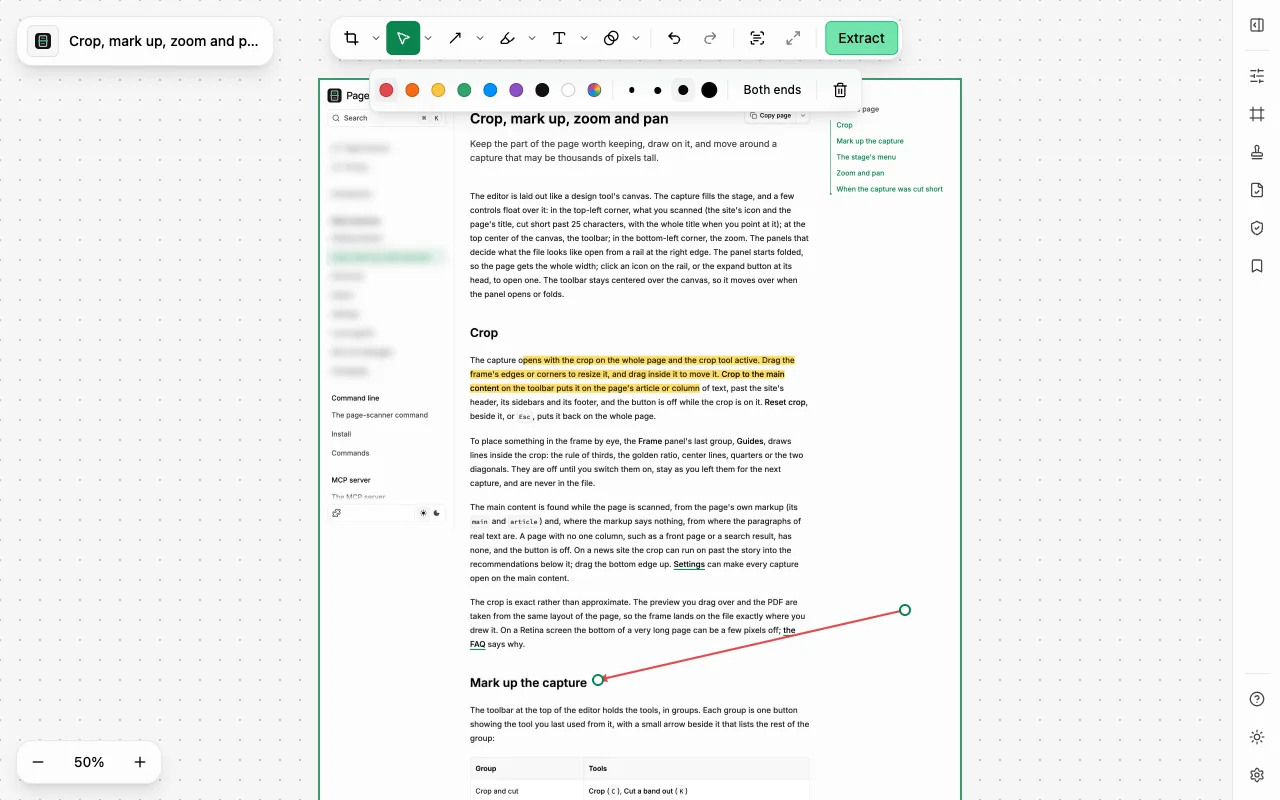
- Blur (
B) softens the pixels, with five radii. In the PDF, the text under the blur is rewritten glyph by glyph before the page is embedded: each letter whose center is under the blur becomes another letter of the same font with the nearest width, so the line keeps its length and spaces. An extractor readsxxxx xxxxxwhere a name was. A photo or a drawing under a blur is only covered, not changed. - Redact (
X) paints the box solid, black unless you pick a color, and removes the glyphs under it from the PDF outright, holding their places so nothing after them on the line moves. The rest of the page stays vector text. A redaction promises that nothing under it survives, and a photo cannot be cut out of a page, nor a drawing that runs past the box's edge. Over one of those the whole PDF becomes an image with the box painted in, and the Output Format panel says so, with the reason, before you extract. - Erase text (
W) takes the words out of the PDF as if they had been deleted and draws nothing, so the page's own background shows where they were. It promises only that the text is gone: a logo or a chart under it stays in the file, in plain sight.
In a PNG or a JPEG all three are what they look like, since an image has no text layer to leak.
The file's other ways of carrying text are handled too: a link under any of the three is left out
of the PDF, because a mailto: under a blurred email is the email, and a heading under one gets
no bookmark, because the bookmark's title is the text it hides.
Sensitive Text, a panel on the editor's rail, finds candidates when you press a scan and never
before. Pattern Scan looks for email addresses, phone numbers, card numbers that pass the Luhn
check, IBANs that pass the mod-97 check, ID and tax numbers whose check digit agrees (Korea's
resident registration number, Japan's My Number, China's resident ID, Italy's codice fiscale, US
Social Security numbers and a few more), IP addresses, and API keys by the prefixes their issuers
publish or by looking random enough, plus any words or /patterns/ you saved in the settings.
AI Scan looks for names, postal addresses, ID numbers and payment details, and it asks a model on
your computer: Chrome's built-in model, a server you run on localhost (Ollama, LM Studio,
llama.cpp, vLLM, Jan, LocalAI, KoboldCpp, MLX LM or any OpenAI-compatible one), or a small model
Page Scanner downloads on your click to run in the browser on WebGPU. The text goes to that
model and nowhere else. Every find is listed, masked and ticked, and nothing becomes a mark until
you press Redact 9, Blur 9 or Erase 9 at the foot of the panel.
What it costs: it captures a browser tab, not your desktop. A screenshot of another app can be opened in the editor (PNG, JPEG, WebP or a PDF), and its text is recognized on your computer for Sensitive Text; there a redaction paints over the pixels, since a picture has no text to remove. The rules miss a phone number written as one run of digits, AI Scan's finds are the model's judgment and not a check, and Chrome's own model is on few machines. Captures and marks stay in the browser; the extension sends anonymous counts of which features were used, never a find or a pattern.
Verdict: the one to use when the file you share is a PDF of a web page and the hidden text has to be gone from it, not just covered.
Which should you use?
Use Preview if you are on a Mac, the screenshot is a picture, and a filled rectangle is enough. Use its Redact tool for a PDF someone sent you.
Use Snagit if your screenshots come from desktop apps as often as from a browser, or you need faces found and covered automatically.
Use Awesome Screenshot if you blur tab captures and share them by link, often.
Use Page Scanner if you are sharing a web page as a PDF, want its text searchable everywhere except where you hid something, and want the sensitive parts found on your own machine. For more on the PDF side, see how to save a web page as a PDF.
Frequently asked questions
Why did my redacted PDF turn into an image? In Page Scanner, a redaction over a photo, or over a drawing that crosses the box's edge, cannot be removed from the page while keeping it vector, so the PDF becomes an image with the box painted in. The panel says so before you extract. Crop the picture away, or export a PNG, if the rest of the text must stay text.
Does anything leave my computer? Snagit says Smart Redact uploads nothing. Page Scanner's captures, marks and files stay on your machine, and AI Scan's text goes only to a model on the same computer.
Where this comes from
- Apple: Annotate an image in Preview on Mac and Annotate a PDF in Preview on Mac.
- TechSmith: Hide Sensitive Information in an Image, Smart Redact, the Snagit page and the store.
- Awesome Screenshot: its Chrome Web Store listing, the help center's How to blur out parts of a screenshot, its home page and pricing.
- Page Scanner: marking up the capture, the AI Model settings and the FAQ.